How to add an Authorization header in Chrome
Send a bearer token or API key with the requests a page makes, for a staging API or a local app, and keep the token on the one site that needs it.
Last updated 8 October 2026
Your staging API wants Authorization: Bearer <token>, but the front end you're testing doesn't log in yet, or you want to try a different user's token without changing code. Chrome has no setting for this, and DevTools can show request headers but can't add one. These are the ways to do it.
1. One request, from the console
To check a single endpoint, call it from the DevTools console with the header set (MDN: setting headers with fetch):
fetch("https://api.staging.example.com/v1/me", { headers: { Authorization: "Bearer TOKEN" } }).then((r) => r.json())
It runs as the page you're on, so a call to another origin needs that API to allow it: a custom Authorization header makes the browser send a CORS preflight first. It doesn't change the requests the page makes on its own.
2. Basic auth, when the server asks
If the server answers with WWW-Authenticate: Basic, Chrome shows its own sign-in box and sends the header for you after that. Nothing to set up, but it only works for Basic auth, not tokens.
3. An extension rule, for every request to one site
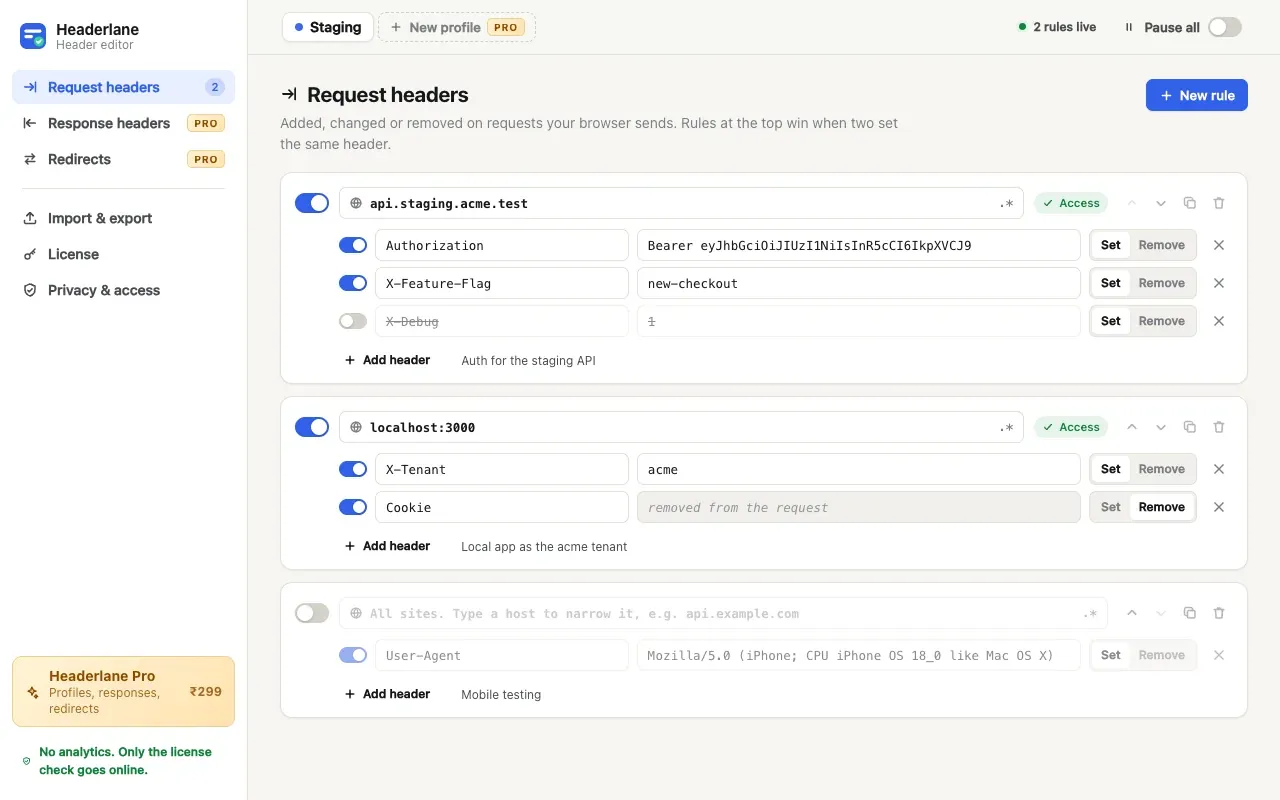
A header editor adds the header to every request the browser sends to a site, including the page's own fetch calls, so the app behaves as if it were signed in. In Headerlane:
- Click New rule and type the API's host, such as
api.staging.example.com. - Add a header named
Authorizationwith the valueBearerfollowed by your token. - Click Allow it in the banner and confirm Chrome's prompt. Headerlane can only change requests to sites you've allowed.
- Reload the page. The toolbar badge shows how many rules apply to the current tab.
Keep the token on one site
- Never apply it to all sites. A rule without a host sends your token to every site you visit. Use the API's exact host.
- Use a test token. A short-lived token for a test user limits the damage if it leaks.
- Switch the rule off when you're done, and remember an exported file contains the token.
For other headers, see how to set request headers in Chrome, or how to change the User-Agent.
Questions
- Does the header reach fetch and XHR calls, not just page loads?
- Yes. Headerlane's rules apply to every request to the matching site: page loads, fetch and XHR calls, images and scripts.
- Where is the token stored?
- In the extension's local storage on your computer. Headerlane has no server and sends nothing besides its Pro license check. An export file includes the token in plain text, so treat it like a password.
- Is it free?
- Yes. Request-header rules, including Authorization, are in Headerlane's free version.
A header editor you don't have to trust blindly.
A Chrome extension that sets, changes or removes HTTP headers per URL pattern. No analytics, no server, site access asked per site. Imports ModHeader exports.
Add to Chrome